Back to Blog
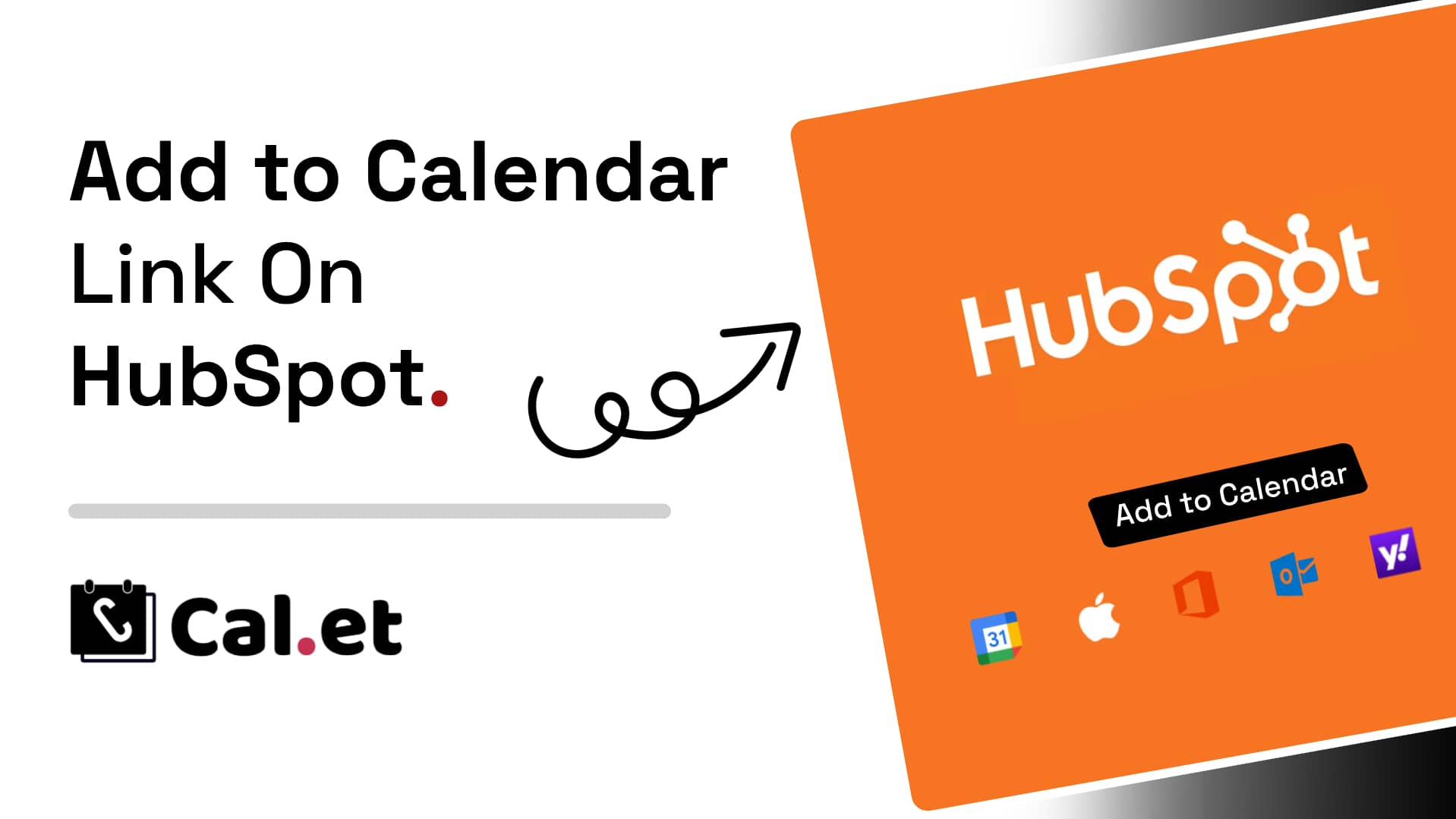
Add to Calendar Links in HubSpot Emails: Get More People to Actually Show Up (2026)
Written by
Last updated: March 2026
You send the email. You get strong open rates. People click "Register." Then the day arrives and half your seats are empty.
The gap between "I'm interested" and "I actually showed up" almost always comes down to one thing: the event never made it into anyone's calendar. An add-to-calendar link is the fix. It takes your registered audience from "probably remembers" to "has a calendar block with your event's name on it." This guide shows you exactly how to embed one inside HubSpot, using CalGet's add-to-calendar link generator to build it.
The whole setup takes under ten minutes and requires zero coding.
----
Why HubSpot Emails Need an Add-to-Calendar Link
HubSpot is excellent at getting people to register. It is not, by default, excellent at making sure those same people remember to show up.
Picture a 400-person webinar where 140 people actually join the call. The other 260 registrants didn't lose interest — most of them just forgot, because no one gave them a frictionless way to lock the date down. A single add-to-calendar link in your confirmation or promotional email would have covered most of that gap.
The mechanism is simple: clicking the link opens the recipient's calendar app with the event pre-filled — title, date, time, description, location, the lot. One click, event saved, reminder set. Your audience doesn't have to copy-paste anything or remember to do it later.
CalGet's add-to-calendar link generator builds links that work across Google Calendar, Apple Calendar, Outlook, Yahoo Calendar, and Office365, plus an ICS file for any other calendar client. No account required to generate your first link.
Step 1: Build Your Event Link on CalGet
Head to calget.com/add-to-calendar-link-generator.
Fill in your event details: title, start time, end time, location (or a virtual meeting URL), and a description. The description is worth taking seriously — this is what your attendee will see when they open the saved event on the day. Include the join link, any prep materials, and anything they need to know before showing up.
Once you click "Create Event," CalGet generates individual links for each major calendar platform and an embeddable HTML snippet. That snippet is what goes into HubSpot.
Step 2: Copy the HTML Code
CalGet gives you two options: direct links per platform, or a single HTML block that renders as an "Add to Calendar" button covering all platforms at once. For HubSpot emails, the HTML option is what you want — it handles platform detection and gives recipients a clean, single button to click.
Click "Copy" next to the HTML snippet. It goes straight to your clipboard.
Step 3: Embed the Add-to-Calendar Link in HubSpot
Open HubSpot and navigate to your email template — either an existing one or a new draft.
In the email editor, click the + button to open the content block menu. Select the HTML block option from the list. A code block will appear in your email layout.
Paste the HTML snippet from CalGet into that block. HubSpot will render a preview of the button inline in the editor.
Before you do anything else, send a test email to yourself. Open it in at least two environments — your desktop email client and your phone. Click the button on both. Confirm the calendar add fires correctly and that the event details are accurate. This step is not optional; broken calendar links in a live campaign are harder to fix than the 90 seconds this check takes.
If you'd rather watch the process than read it, CalGet has a step-by-step HubSpot tutorial on YouTube that covers the full embed in under two minutes.
Step 4: Place the Link Where It Gets Seen
The link needs to be visible without scrolling. A "Save the Date" or "Add to My Calendar" button placed immediately after your event headline will consistently outperform the same button buried at the bottom of a long email.
If your HubSpot email has a prominent event header image followed by the core details (date, time, location), put the calendar link directly after those details — before any additional copy. That is where the reader's attention is highest and where the action is most natural.
A clear label on the button matters. "Add to My Calendar" and "Save the Date" outperform generic labels like "Click Here." Give readers a signal that tells them exactly what happens when they click.
Generate your first add-to-calendar link free — no account needed: calget.com/add-to-calendar-link-generator
Step 5: Send or Schedule Your Campaign
With the link in place and tested, you're ready to send. HubSpot's scheduling tools work as normal — nothing about the embedded calendar link changes how you queue or send the campaign.
One thing worth doing: track clicks on the calendar link separately from other links in the email. HubSpot's click tracking is already baked in for HTML blocks. In a few campaigns, you'll have a baseline for how many recipients actually save the date vs. how many open the email. That ratio tells you more about your likely attendance than registration numbers alone.
Tips That Actually Move the Number
Test across devices before every send. Your audience uses a mix of desktop Outlook, Gmail on Android, Apple Mail on iPhone, and everything in between. CalGet's HTML snippet is built to handle this, but confirm it in your own test send before it hits your list.
Use it in every event-related email, not just the invitation. Reminder emails sent 48 hours and 24 hours before the event are where a second calendar-link prompt can recover the people who meant to save it but didn't. A registrant who sees the link twice is more likely to end up with it in their calendar than one who saw it once in the original email. If you're also collecting RSVPs through HubSpot, pairing an RSVP button with your calendar link in the same email is worth testing — it handles both the confirmation and the date-save in one send.
Keep the button label action-oriented. "Add to Google Calendar," "Save to My Calendar," and "Add to Calendar" all work. Labels like "Calendar Link" or "Event Details" are less clear about what the click does and will see lower interaction.
Frequently Asked Questions
Does the CalGet add-to-calendar link work in all HubSpot email plans? Yes. The HTML block is available in all HubSpot email plans, including the free tier. You're embedding a standard HTML element — no special HubSpot features or paid add-ons are required.
What calendar apps does the link support? Google Calendar, Apple Calendar, Outlook, Yahoo Calendar, and Office365. CalGet also generates an ICS file link for any other calendar client. All are covered by the single HTML snippet.
Can I use the same CalGet link across multiple emails? Yes. The link CalGet generates is a static URL — you can reuse it in your confirmation email, reminder emails, and any other communications for the same event. If your event details change, regenerate the link with the updated information.
Do I need a CalGet account to generate a link? No. You can generate your first add-to-calendar link and copy the HTML code without creating an account. CalGet's free plan includes 50 calendar adds per event — enough for most small and mid-sized campaigns.
Where should I place the add-to-calendar button in a HubSpot email? Directly after the core event details (date, time, location), before additional body copy. The closer the button is to the event information, the more likely recipients are to use it while the details are in front of them.
Generate your add-to-calendar link free — no account needed: calget.com/add-to-calendar-link-generator
Get Your Events on Everyone's Calendar.
Generate universal "Add to Calendar" links that work everywhere. Perfect for social media, emails, and websites.