Back to Blog
How to Add an "Add to Calendar" Link to Your Canva Designs
Written by
Last updated: March 2026
Canva is where a lot of event promotion lives — the flyer, the social post, the email header. Most of those designs go out without any way for someone to actually save the event. They see it, think "I should go to that," and then forget about it entirely.
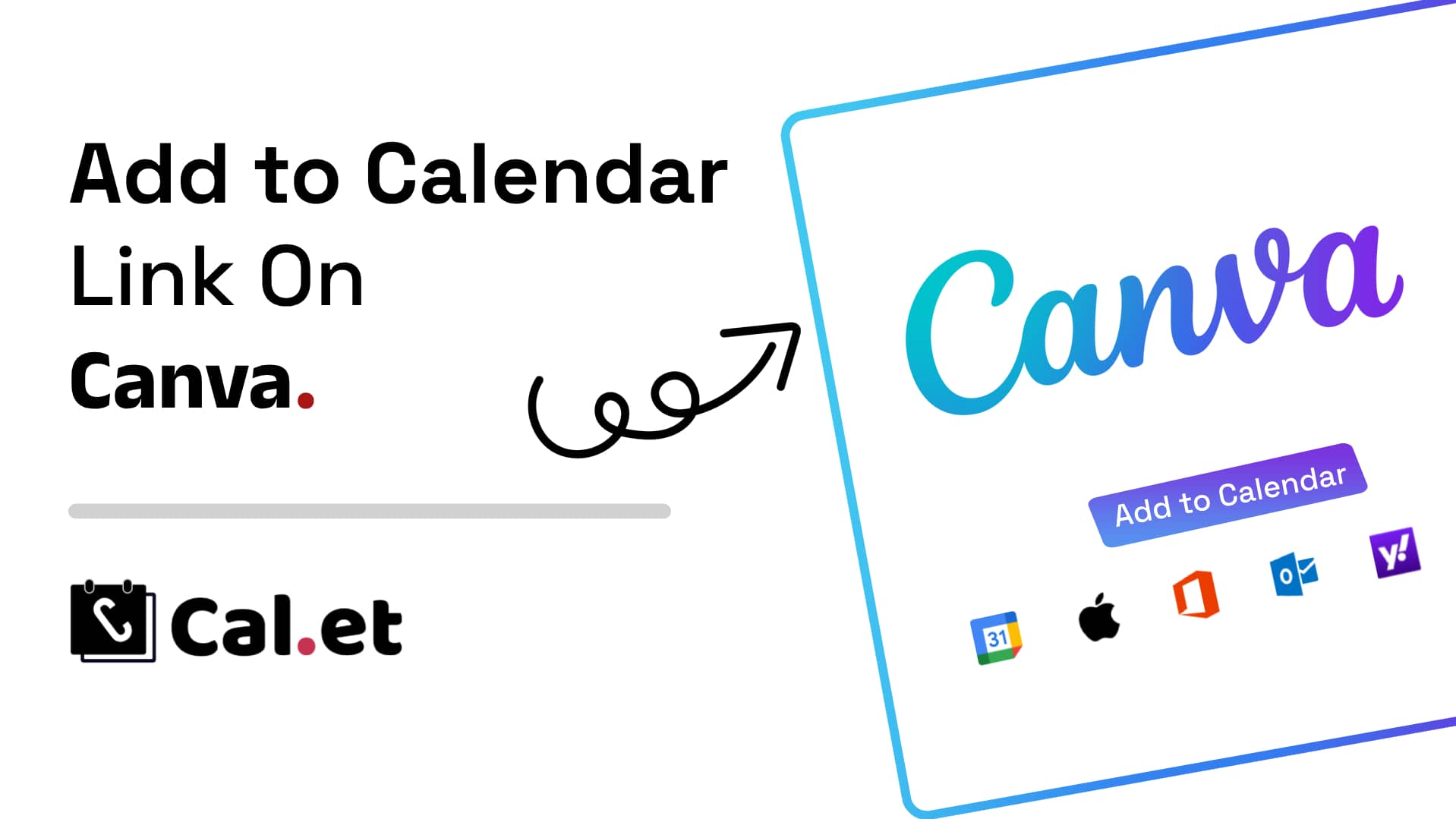
Adding an add-to-calendar link closes that gap. One click from your Canva design and the event is in their Google Calendar, Apple Calendar, or Outlook, with a reminder set. Here's how to do it in three steps.
What You Need Before You Start
Two things: a Canva design in any format — flyer, Instagram post, email graphic, presentation slide — and a calendar link for your event.
CalGet's add-to-calendar link generator handles the link. The free plan is enough for this. No credit card required.
Step 1: Generate Your Calendar Link
Go to CalGet's link generator and fill in your event details:
- Event title
- Date, time, and timezone
- Location or virtual meeting link
- A short description if you want one
Hit generate. CalGet produces one universal link that works across Google Calendar, Apple Calendar, Outlook, Office 365, and Yahoo. That's important for Canva designs — you have no idea which calendar your audience uses. One link covers all of them. Copy it.
Step 2: Add the Link to Your Canva Design
Open your design in Canva. Click into a text element or add a new text box. Write something short:
- "Add to your calendar"
- "Save the date — click to add"
- "Add this to your calendar"
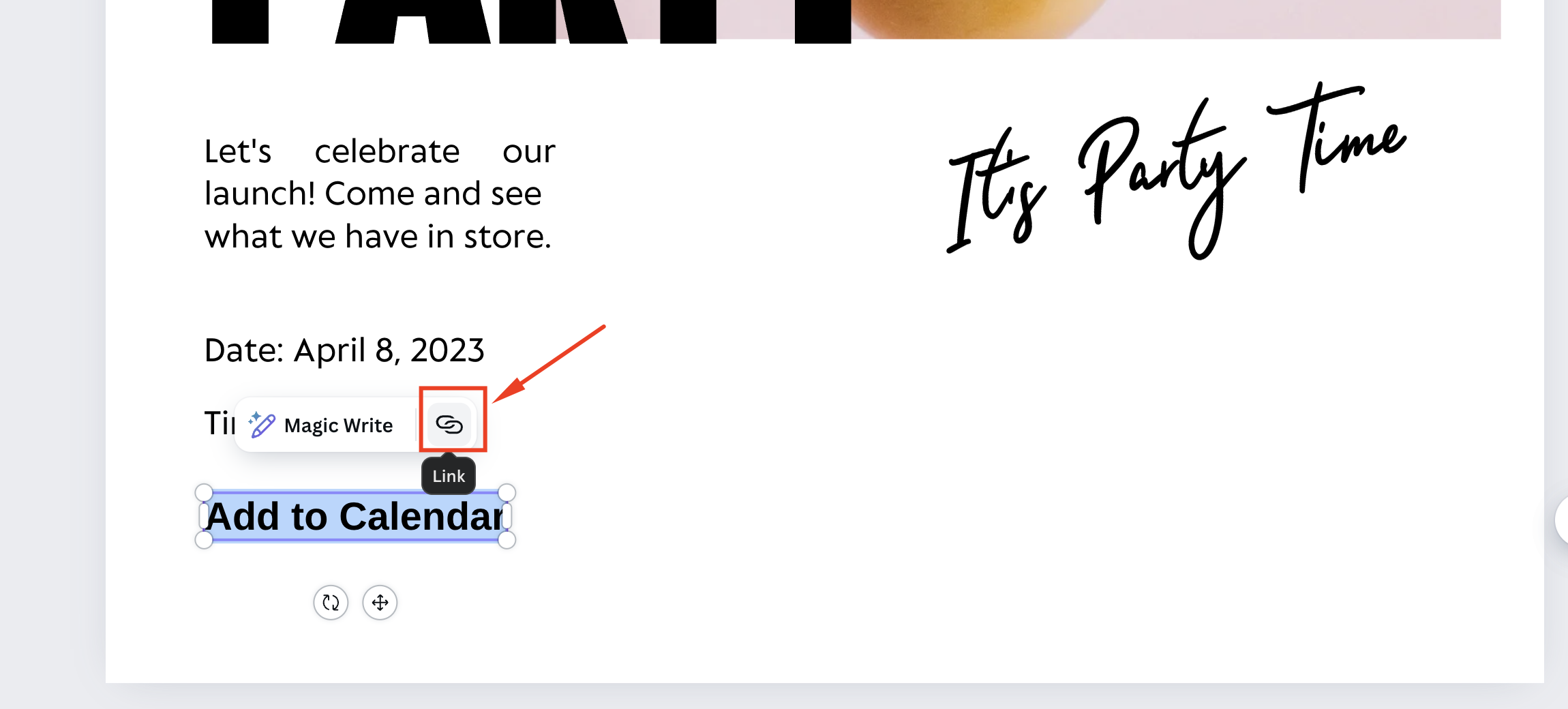
Keep it brief. The person looking at your event flyer doesn't need convincing — they just need to see the option. Highlight the text, click the link icon in Canva's toolbar (the chain link symbol), paste in your CalGet URL, and hit Apply. Canva underlines the text and makes it a live hyperlink.
If plain linked text feels too subtle for your design, add it to a styled button shape or a banner strip at the bottom. Just make sure it has enough visual weight to be noticed — a tiny hyperlink buried in the corner of a busy flyer gets ignored.
Step 3: Check Where You're Sharing
This is the step most guides skip, and it's the one that actually matters.
Canva published link or embedded design: The link is fully live. Anyone who views the design can click it and be taken straight to the calendar prompt. This is the ideal use case.
Downloaded as an image (PNG or JPG): Links don't survive an image download. The text will say "Add to your calendar" but nothing happens when someone taps it. For downloaded images, put the CalGet link in the caption or the first comment instead.
Downloaded as a PDF: Links survive in PDF format. A PDF flyer or digital program will have a fully working add-to-calendar link.
Printed: Links don't work on paper. Use the QR code instead. CalGet generates a QR code automatically alongside every link — download it, drop it into your Canva design, and printed materials become scannable. Someone at your next event can scan the poster and add the date in seconds.
Test the link before publishing. Click it yourself, confirm the event details are correct, and check that the time shows accurately for your timezone. One test takes 30 seconds. Fixing a wrong date after your flyer has been shared takes considerably longer.
One Link, Every Design
If you're running a multi-post campaign for the same event — a teaser post, a reminder, a day-before push — generate your CalGet link once and reuse it across every Canva design. The link is permanent until the event date passes. You're not creating a new one for each post.
If the event details change, update them in CalGet. The link stays the same, so your existing Canva designs don't need to be touched.
Frequently Asked Questions
Does this work on Canva's free plan? Yes. Hyperlinking text is available on both Canva Free and Canva Pro. The limitation is in format — hyperlinks are only active in Canva's digital sharing formats, not in downloaded images.
Which calendar apps does the link support? Google Calendar, Apple Calendar, Microsoft Outlook, Office 365, and Yahoo Calendar. One CalGet link covers all of them — the attendee picks their app when they click.
Can I use this for a recurring event series? For a single date, yes — generate a link for that event. For an ongoing series, CalGet's subscription calendar is a better fit. Subscribers get every future date pushed to their calendar automatically. You share one link once, and every new event you add shows up in their calendar without them doing anything.
What if I need to update the event details after sharing? Edit the event in CalGet. The link stays the same. Attendees who've already added the event will see updated details the next time their calendar syncs.
Your Canva design gets people interested. The calendar link gets them there. Generate yours at calget.com/add-to-calendar-link-generator — free, no account required for the first one.
Get Your Events on Everyone's Calendar.
Generate universal "Add to Calendar" links that work everywhere. Perfect for social media, emails, and websites.